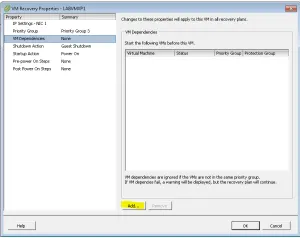
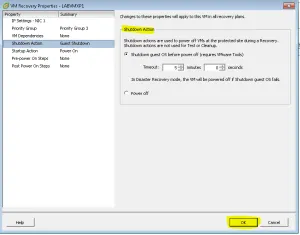
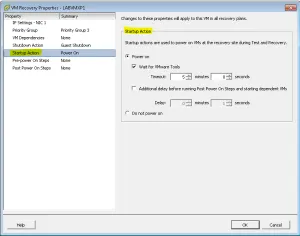
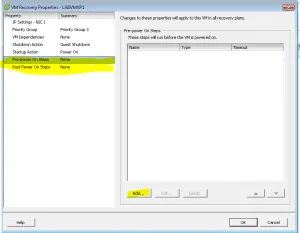
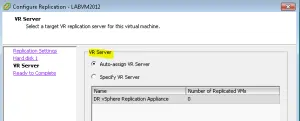
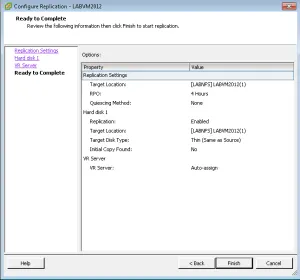
This is Blog 6 on VMware Site Recovery Manager and vSphere Replication. This post will cover creating Protection Groups and Recovery Plans.
Current Progress
- Prod and DR Cluster
- Prod and DR Cluster
- 1 host per cluster with vSphere 5.5
- 1 Domain Controller (08R2) per site
- 1 vCenter Virtual Appliance (5.5) per site
- 1 SRM server per site. SQL express is installed on the same server
- SRM servers paired together
- Resources Mappings, Folder Mappings, network Mappings and Placeholder Datastores have been configured
- vSphere Replication has been installed
- VMs have been replicated with vSphere Replication
Creating Protection Groups
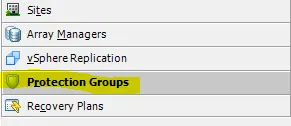
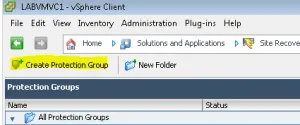
Login into SRM and go to Protection Groups
Create Protection Groups
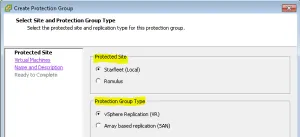
Select the Protection Site and the Protection Group Type
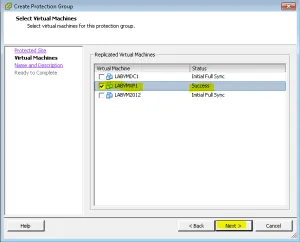
Select the Replicated VMs for the Protection Group. A VM can only be in one protection group.
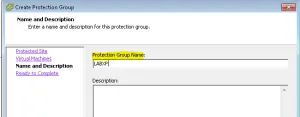
Name the Protection Group
Complete
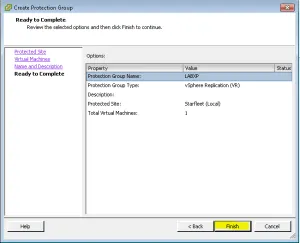
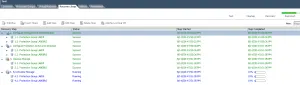
Once they have completed they will show up under Protection Groups
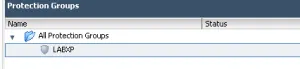
You can then see the details of the Protection Groups

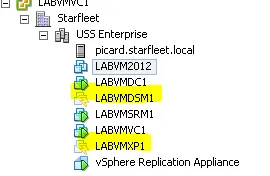
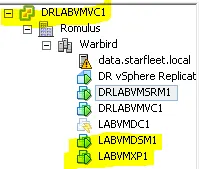
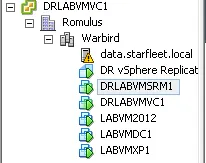
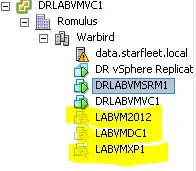
Login to the DR site and the VMs that are being protected will show up like the picture below. It creates a placeholder for the VMs.
Creating Recovery Plans
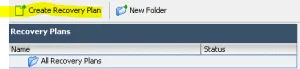
Once you have created your Protection Groups go to Create Recovery Plan
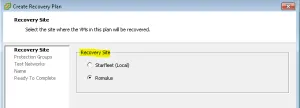
Select the Recovery Site
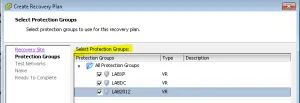
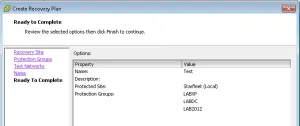
Select Protection Groups that you want to recover
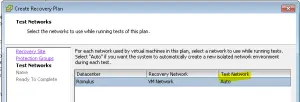
Select the Test Network Setting. Setting it to Auto will allow SRM to create its own “bubble” network when you decide to test. You can change it to whatever network you want. Just remember that this will bring up all protected VMs so you want to avoid allowing them access to the live network.
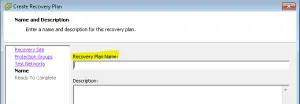
Name the Recovery Plan
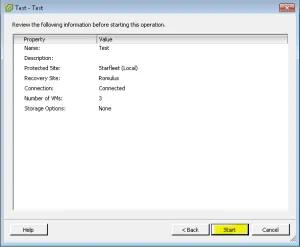
Complete the Recovery Plan
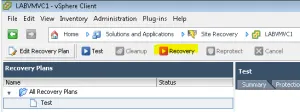
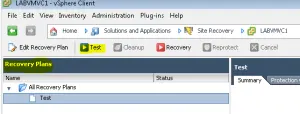
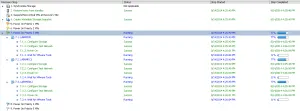
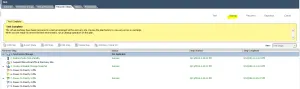
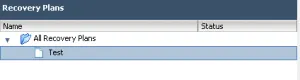
Now the Recovery Plan will show up. You can create multiple Recovery Plans for testing Protection Groups if you choose.
The Next Blog will cover VM Recovery Properties and all of the settings that you have to choose from.